A slow machine turns a wedding edit into a waiting game, especially once you’re color grading off the original 4K files instead of proxies. This guide walks through how to spec a computer that keeps up, on either Mac or PC, and what really matters in the processor, GPU, RAM, and storage.
What makes a well-edited wedding highlight video stand out? Well, first and foremost, it’s the videographer’s footage. After that, it’s up to the editor to bring to life the ideas of both the videographer and the couple. To pull this off, we need not just experience in editing wedding highlights and skill with editing software but also consideration of the editor’s equipment, as our result hinges on its performance. If the editor’s PC/MAC is on the weaker side, your wedding film will take quite a while to render, making the whole process quite challenging and laborious – especially when tackling color correction with original files instead of proxies. So, what kind of desktop computer or laptop should the editor opt for to ensure smooth and speedy work?
Mac for Video Editing
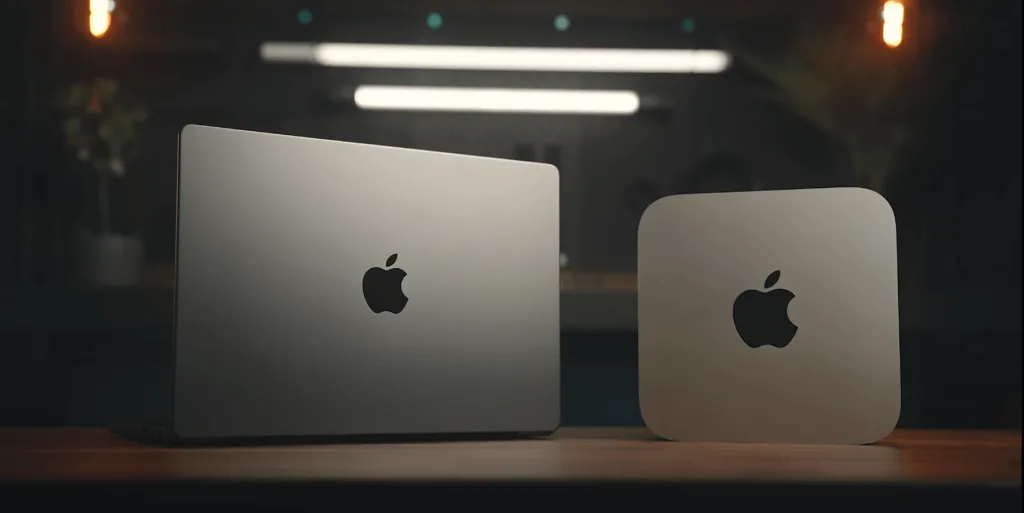
First off, let’s dive into Apple computers. The Apple website has a super user-friendly menu for picking out your tech, and we’re honing in on two options: the MacBook and Mac Studio. These are top-notch choices for editing wedding clips. We won’t cover the very expensive Mac Pro workstations, since those start around $7,000, well above what a wedding editing rig needs. The starting configurations for the MacBook and Mac Studio won’t break the bank. We all know the MacBook is the go-to for those always on the move, getting their editing done on the fly. On the flip side, the Mac Studio is a compact powerhouse with serious computing muscle. It packs a punch in a small case, but you’ll need a separate mouse, keyboard, and monitor.
Also keep in mind that the Mac Studio is a desktop machine: it runs only on mains power, with no built-in battery, so it stays put on your desk. Which one suits you depends on how you work, so it’s worth weighing the two against your own needs.
Display
Let’s start our talk by selecting the display size, and here we suggest taking your preferences into account. I use a 16-inch MacBook Pro and am pleased with it. This size allows me to carry out color correction on a nice, large screen, enhancing the overall result and client feedback.
Processor
Now, let’s talk about the processor (CPU) choice. For simple wedding highlights in Full HD, the M5 chip in the MacBook Air can handle the job, and it now comes with 16 GB of memory as standard (from $1,099 for the 13-inch, $1,299 for the 15-inch). It’ll manage 4K at times, but it starts to strain on files above a 200 Mbps bitrate.
For smooth 4K editing, step up to the M5 Pro or M5 Max chips in the MacBook Pro, released in March 2026. They bring up to 50% faster graphics than the M4 Pro and Max, plus a much quicker AI engine, which matters directly for tools like DaVinci Resolve’s Magic Mask, object tracking, and noise reduction. On the desktop side, the Mac Studio currently runs the M4 Max or M3 Ultra, with an M5 refresh expected later in 2026.
These chips start at 10 or more CPU cores and handle a heavy editing workload with room to spare, right up to color grading on large, high-bitrate projects. They also use integrated graphics, so a MacBook or Mac Studio doesn’t need a separate graphics card, the GPU cores are built into the chip, and they scale up considerably as you move from M5 to M5 Pro, Max, and Ultra.
RAM
Random Access Memory (RAM) is a key player in video editing for a variety of reasons. Dealing with large files, particularly high-resolution video files (like 4K or higher), can be demanding on resources, requiring a considerable amount of RAM for effective editing. A substantial RAM capacity allows the editing application to smoothly handle large and intricate projects without notable delays.
For seamless real-time video playback and editing, it’s crucial for your system to have ample RAM. This enables editing programs to store video clips and audio tracks in the RAM for swift access, accelerating the editing process.
Don’t cut corners on memory. In 2026, treat 32 GB as the floor for 1080p and light 4K work, 64 GB as the practical professional minimum for 4K multicam, and 128 GB for 6K, 8K, or heavy Fusion compositing. Even with how well editing apps are optimized for macOS, they still eat RAM, so buy for the projects you’ll be taking on, not just today’s.
Worth knowing before you buy: memory prices climbed sharply through 2026. Apple even dropped some of its higher-capacity RAM options, and the Mac Studio refresh slipped partly because of the shortage. If you know you’ll need more memory, it’s better to buy it sooner than later, since waiting may mean paying more or losing the configuration you want.
SSD
Solid State Drives (SSD) are typically better suited for video editing than traditional Hard Disk Drives (HDD). This is because SSDs boast significantly higher data read and write speeds compared to HDDs. This allows for speedy loading and saving of large video files, expediting the editing process. With quick data access, SSDs offer instant data retrieval. Additionally, SSDs have much lower latency compared to HDDs, which can be crucial when editing videos in real-time.
For storage, treat 1 TB of internal SSD as the baseline in 2026. Rather than paying Apple’s premium to configure a larger internal drive, a smart approach is to keep your system on the internal SSD and store footage on an external NVMe drive connected over Thunderbolt 4 or 5. That’s usually cheaper than upgrading Apple’s internal storage and much faster than older USB drives. An M.2 NVMe SSD is a great choice for this, offering very high read and write speeds. Just make sure the external enclosure supports Thunderbolt, otherwise the drive won’t hit those speeds.
Additional information
We won’t get into power adapters for MacBook here. It’s clear that the higher the wattage, the faster your computer will charge.
Apple prices shift over time, so check apple.com for your country, but here’s roughly where the lineup sat in mid-2026. The MacBook Air with the M5 chip starts at $1,099 (13-inch) or $1,299 (15-inch). The MacBook Pro with M5 Pro or M5 Max starts higher and is the better fit for steady 4K work. On the desktop side, the Mac Studio comes with the M4 Max (from around $2,499) or the M3 Ultra (from around $5,299).
To sum up, for a 2026 Apple machine handling 4K wedding edits, the baseline is: M4 Pro or newer (M5 or M5 Pro recommended), at least 32 GB of memory (48 to 64 GB for 4K multicam), a 1 TB internal SSD paired with a fast external NVMe drive for footage, and Thunderbolt 4 or 5 ports.
PC for Video Editing
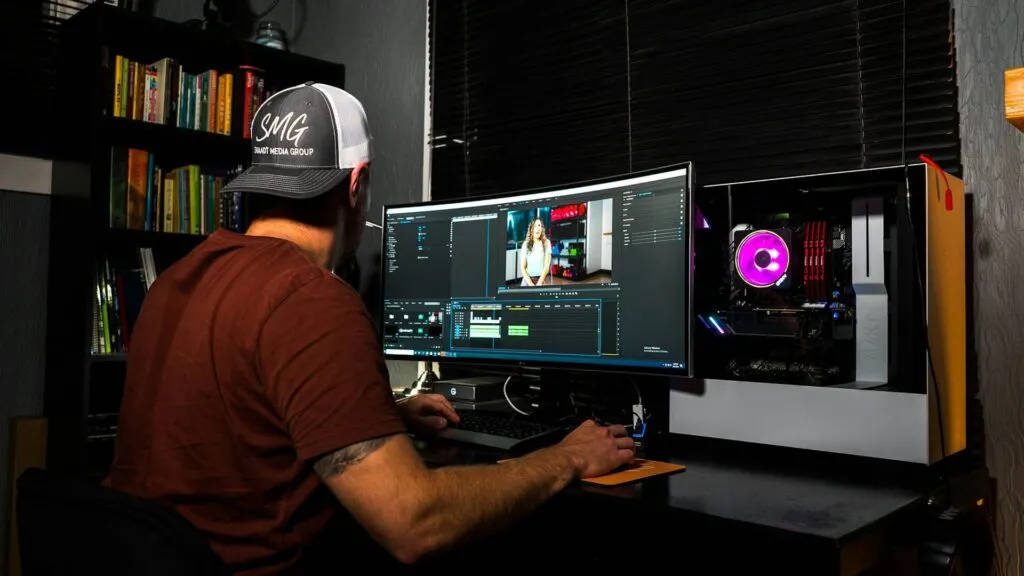
Let’s shift our focus to PCs now. There are currently numerous options for building a system, but we won’t be delving into specific processor and graphics card models; otherwise, this article would become never-ending. We’ll take a more general approach to choosing a good computer for your video editing needs. When it comes to PCs, there are various components that need to be acquired, starting with the case, power supply, and motherboard. We won’t go into the details, but it’s worth mentioning that the more powerful the processor you choose, the more you should invest in an expensive and reliable motherboard to safeguard against unwanted overheating. Cooling for the processor is crucial in preventing overheating, and one of the best and quietest options is liquid cooling. Regarding the choice of components from different companies, that’s entirely up to your discretion; there are many options, each with its own unique features.
Processors
Now, let’s turn our attention to processors (CPU), graphics cards (GPU), RAM, and SSD (HDD) storage.
PC CPUs differ significantly from Apple CPUs, and it’s crucial to consider not only the number of cores but also factors like the processor’s clock speed, the use of energy-efficient cores, and whether it has integrated graphics. But let’s put those details aside and focus on the minimum requirements for video editing. In this case, a 6-core, 12-thread processor is enough. For confident 4K work, an 8-core, 16-thread chip is the better starting point. To name current models (as of 2026): the AMD Ryzen 9 9950X is the best all-rounder for editing, with 16 cores and strong export speeds. If you live in Premiere Pro, the Intel Core Ultra 9 285K is worth a look, since its Quick Sync hardware acceleration gives it an edge on H.264 and H.265 footage. On a tighter budget, the Ryzen 9 9900X or Ryzen 7 9700X both hold up well for 4K editing. As always, AMD or Intel comes down to your workflow and preference.
Graphics card
The graphics card is a vital PC component, and DaVinci Resolve leans on it heavily. Premiere Pro doesn’t always push the GPU to its limit during rendering, whereas Resolve regularly drives it to 100%.
In 2026 the GPU matters for more than rendering, though. It now drives the AI features editors reach for daily: in DaVinci Resolve, that’s Magic Mask, depth maps, Voice Isolation, relighting, and super scaling, and in Premiere Pro, auto-masking and noise reduction. These lean on both video memory and the card’s AI processing, so a GPU with more VRAM and stronger AI performance won’t just render faster, it’ll keep those tools responsive instead of leaving you waiting.
DaVinci Resolve can be picky about the graphics card, especially on lower-end machines with too little video memory, where you may hit errors during rendering or heavy AI work. As of 2026, treat 12 GB of VRAM as the minimum for 4K, 16 GB as comfortable, and 20 to 32 GB for 6K and 8K projects.
For current NVIDIA options, the RTX 5080 (16 GB) hits the best balance for 4K wedding work, the RTX 5070 Ti (16 GB) is a solid mid-range pick, and the RTX 5090 (32 GB) is the one to reach for with 8K RAW and demanding color grades. All three use NVIDIA’s Blackwell architecture, which is noticeably faster on Resolve’s AI tools than the previous 40-series, so a newer card pays off directly in features like Magic Mask and noise reduction, not just raw render speed.
RAM
For RAM, the rule is simple: more is better. In 2026, treat 32 GB as the minimum for 1080p and light 4K work, 64 GB as the practical professional floor for 4K multicam, and 128 GB for 6K, 8K, or heavy Fusion compositing. It’s also better to run two matched modules rather than one, since dual-channel memory gives the CPU more bandwidth to work with, so two 16 GB sticks will outperform a single 32 GB stick.
For 32 GB, use two 16 GB modules; for 64 GB, two 32 GB modules.
The same memory-price crunch applies here, so buy the RAM capacity you need up front rather than counting on a cheap upgrade later.
SSD
Storage Drives (SSD, HDD). Naturally, SSDs are the preferred choice due to their faster performance. When contemplating HDDs, a more innovative approach involves constructing a personal NAS server capable of storing a substantial amount of information (or acquiring a pre-built server). In our workflow, we frequently utilize SSDs in conjunction with cloud storage on Dropbox, eliminating the necessity for editors to invest in numerous HDDs. The SSD capacity surpasses that of Apple computers, being more cost-effective and starting from 2 TB.
In conclusion, for the minimum requirements to edit 4K wedding highlights on a PC in 2026, aim for:
- An 8 to 16-core processor (for example, the AMD Ryzen 9 9950X or Intel Core Ultra 9 285K).
- A graphics card with at least 12 GB of VRAM (RTX 5070 Ti or RTX 5080).
- 32 GB of RAM as the minimum, with 64 GB as the practical working amount.
- A 2 TB or larger NVMe SSD for active projects, kept separate from your system drive.
The Choice of Our Team

What hardware do our leading editors use? Petro, one of our team leaders, runs this PC build (as of mid-2026):
- CPU: AMD Ryzen 9 9950X (16 cores / 32 threads, Zen 5)
- GPU: NVIDIA GeForce RTX 5090 (32 GB GDDR7)
- RAM: 64 GB DDR5 (2 x 32 GB)
- Storage: 8 TB NVMe M.2 SSD (2 x 4 TB)
- A color-calibrated monitor
Final Words
The choice between Apple and PC, along with your component preferences, comes down to you. Either way, capable hardware makes for a smoother, more productive edit and better wedding films at the end of it.
Entrusting us with your wedding films, you can rest assured that our team of professionals excels not only in editing but also employs the best equipment for optimal results.
FAQ
What are the system requirements for Adobe Premiere Pro?
Recommended system requirements for Adobe Premiere Pro (version 26.x, 2026):
For Windows
– CPU: Intel 7th Gen or newer with Quick Sync, or AMD Ryzen 3000 series / Threadripper 2000 series or newer (AVX2 required).
– RAM: 16 GB for HD; 32 GB or more for 4K and higher.
– GPU: 4 GB of VRAM is Adobe’s minimum for HD and light 4K, but 8 GB is a realistic floor and 12 GB or more is recommended for 4K, with DirectX 12 support.
– Storage: Fast NVMe SSD for the app and media cache.
– OS: Windows 11 (64-bit), version 24H2 or later (Windows 10 reached end of support in October 2025).
For macOS
– CPU: Apple silicon M1 or newer (Intel Macs are no longer the current path).
– RAM: 16 GB of unified memory minimum; 32 GB or more for 4K and higher.
– GPU: handled by Apple silicon’s unified memory (16 GB or more recommended for 4K work).
– Storage: Fast NVMe SSD for the app and media cache.
– OS: macOS Ventura or later.
A note for 2026: these are Adobe’s baseline figures. For comfortable 4K wedding editing, aim well above the GPU minimum, 12 GB or more of VRAM on Windows, and 32 to 64 GB of RAM, so the software keeps up with 4K timelines and GPU-accelerated AI tools.
What computer is best for Final Cut Pro?
The top Apple computer for video editing is the Mac Studio, featuring either an M4 Max or an M3 Ultra chip. RAM options run up to 96GB, and storage ranges from 512GB to 8TB SSD. An M5 refresh is expected later in 2026.
The Mac mini (M4, M4 Pro) is the most affordable entry point into Apple silicon editing. It packs an M4 or M4 Pro chip, 16GB to 48GB unified memory, and storage from 256GB, configurable up to 8TB. You supply your own display, keyboard, and mouse.
What are the system requirements for Davinci Resolve?
Recommended system requirements for DaVinci Resolve (version 21, 2026):
For Windows:
– CPU: Intel Core i7 or AMD Ryzen 7 or newer.
– RAM: 16 GB (32 GB or more for Fusion and intensive graphics).
– GPU: Discrete card with 8 GB of VRAM as a realistic minimum, 12 GB or more for 4K, supporting CUDA 12.8 or OpenCL 1.2, with the latest NVIDIA Studio Driver.
– Storage: Fast NVMe SSD, ideally with media cache on a separate drive.
– OS: Windows 11 recommended (Windows 10 reached end of support in October 2025).
For macOS:
– CPU: Apple silicon (M1 or newer). Intel Macs are no longer supported and stay on Resolve 20.
– RAM: 16 GB of unified memory (32 GB or more for intensive graphics).
– GPU: Handled by Apple silicon’s unified memory, 16 GB or more recommended for 4K work.
– Storage: Fast NVMe SSD, ideally with media cache on a separate drive.
– OS: macOS 15 Sequoia or later.